
How to filter your Timeline
Open the Timeline.
Tap the Filter icon (top-right corner).
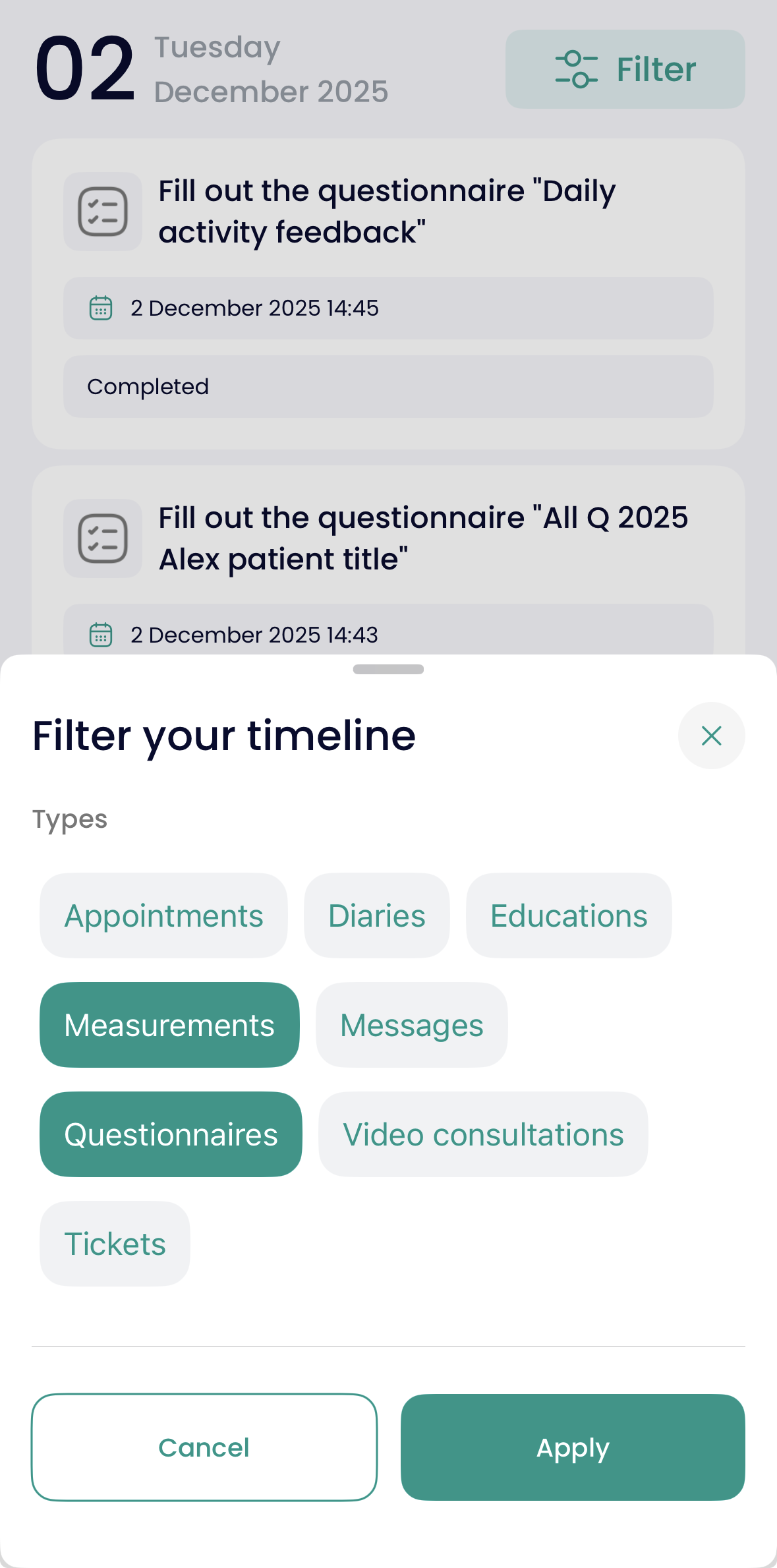
Select one or more content types (for example: Messages and Questionnaires).
Tap Apply to confirm, or Cancel to close without changes.
After applying, the Timeline will show only items matching your selected filters.
If there are no Timeline items for the filters you selected, you’ll see an empty state message, such as:
“No timeline items match your selected filters.”
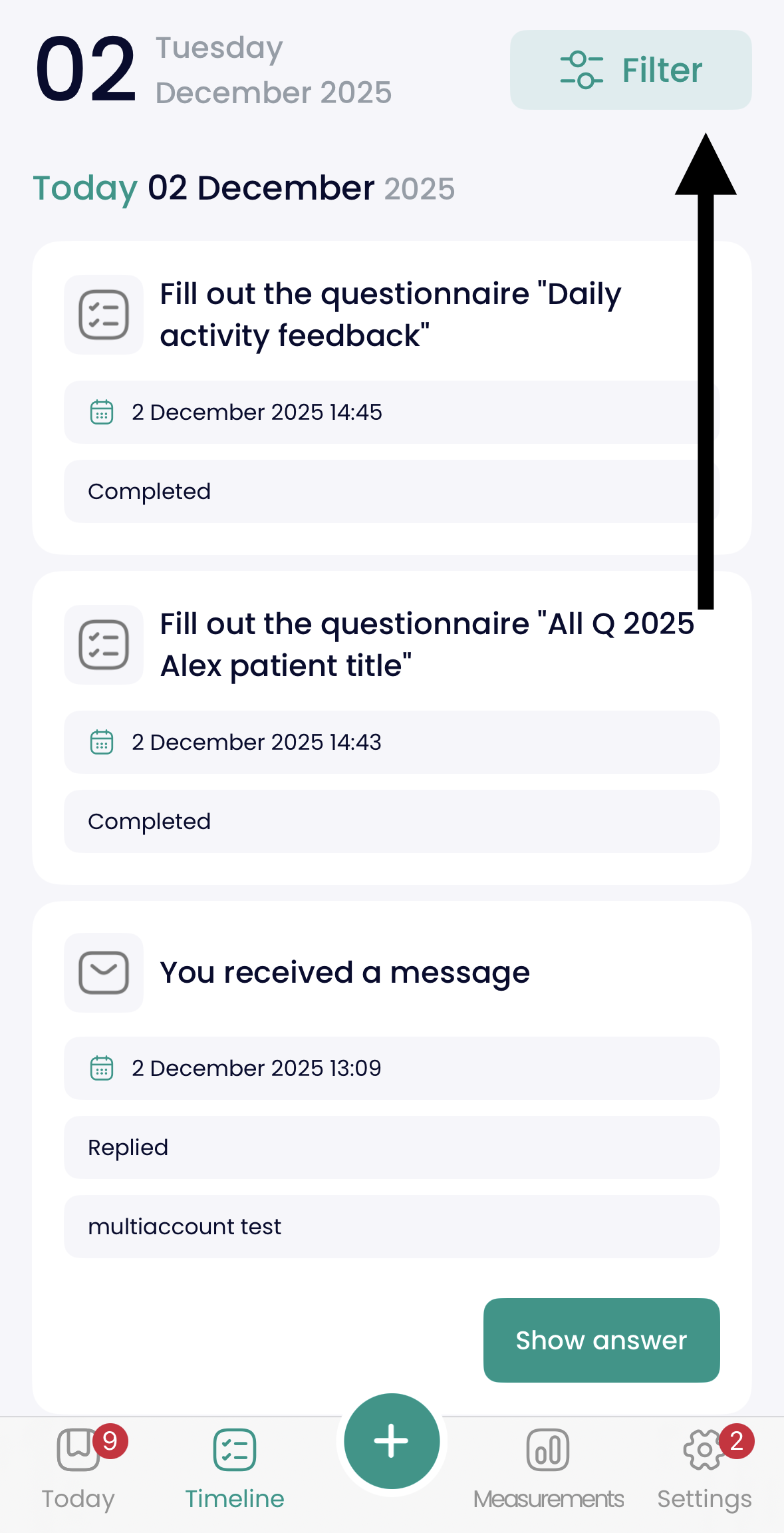
In the timeline, you will find all the completed and expired actions in chronological order, starting from the newest ones.
Depending on your care program, filter options can include:
Questionnaires
Messages
Education
Appointments
Diaries
Video consultations
Admissions
Measurements
Kindly note 👆
Filters stay active during your current session (as long as you keep the app open).
Filters reset when you close the app and open it again—your Timeline will return to the default (unfiltered) view.