

What can you do with multiple accounts?
With the new multi-account feature, you can:
Add multiple patient accounts to the same app
Quickly switch between patients
Stay logged in to all added accounts
Receive notifications for all connected patients
Manage accounts from one device
Add Another Patient Account
You can add a second (up to 5) patient account directly in the app.
Option 1 — From the Today screen
Open the mobile app.
On the Today screen, tap the profile switch icon.
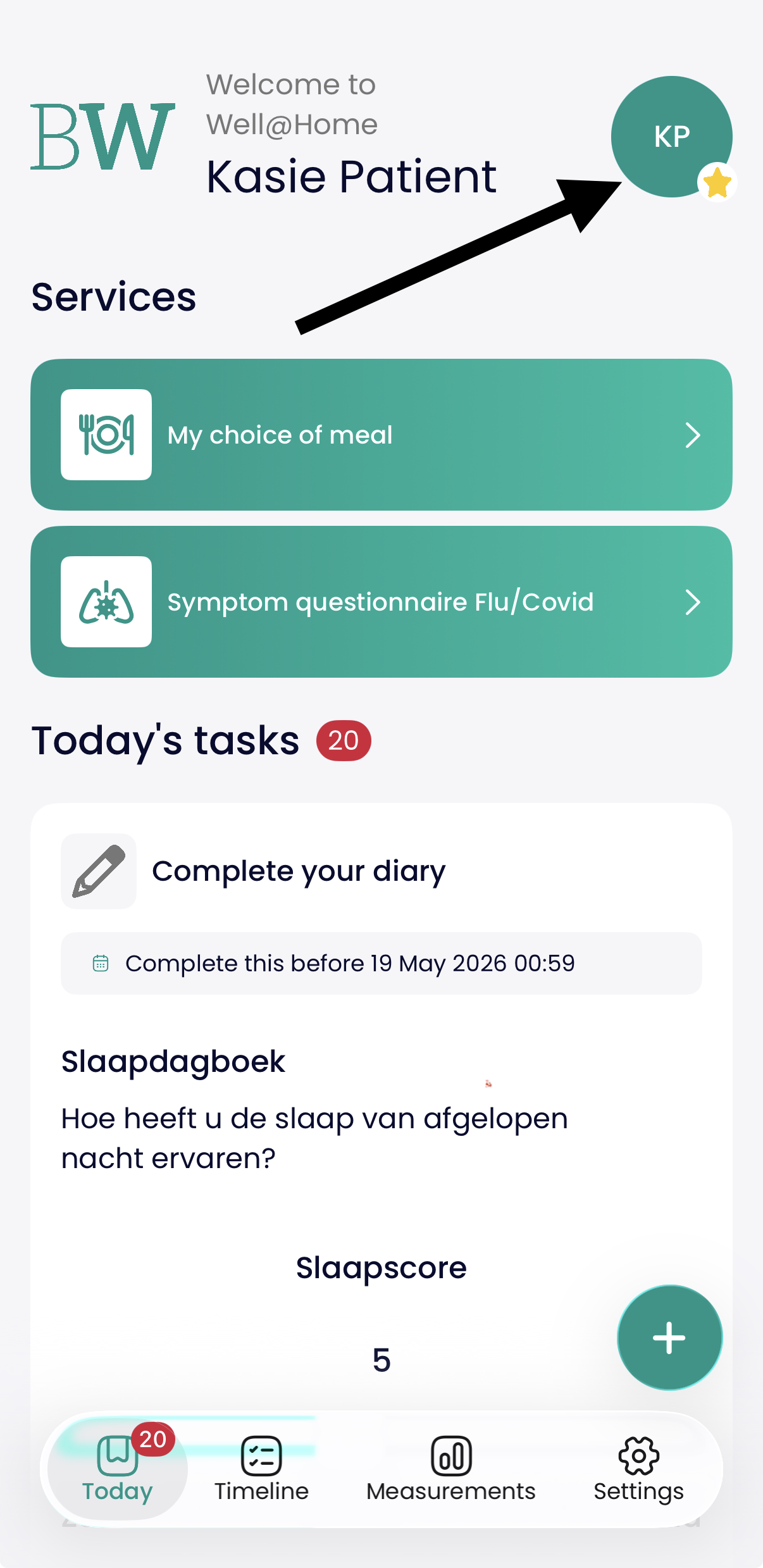
Select Manage Patient Profiles.
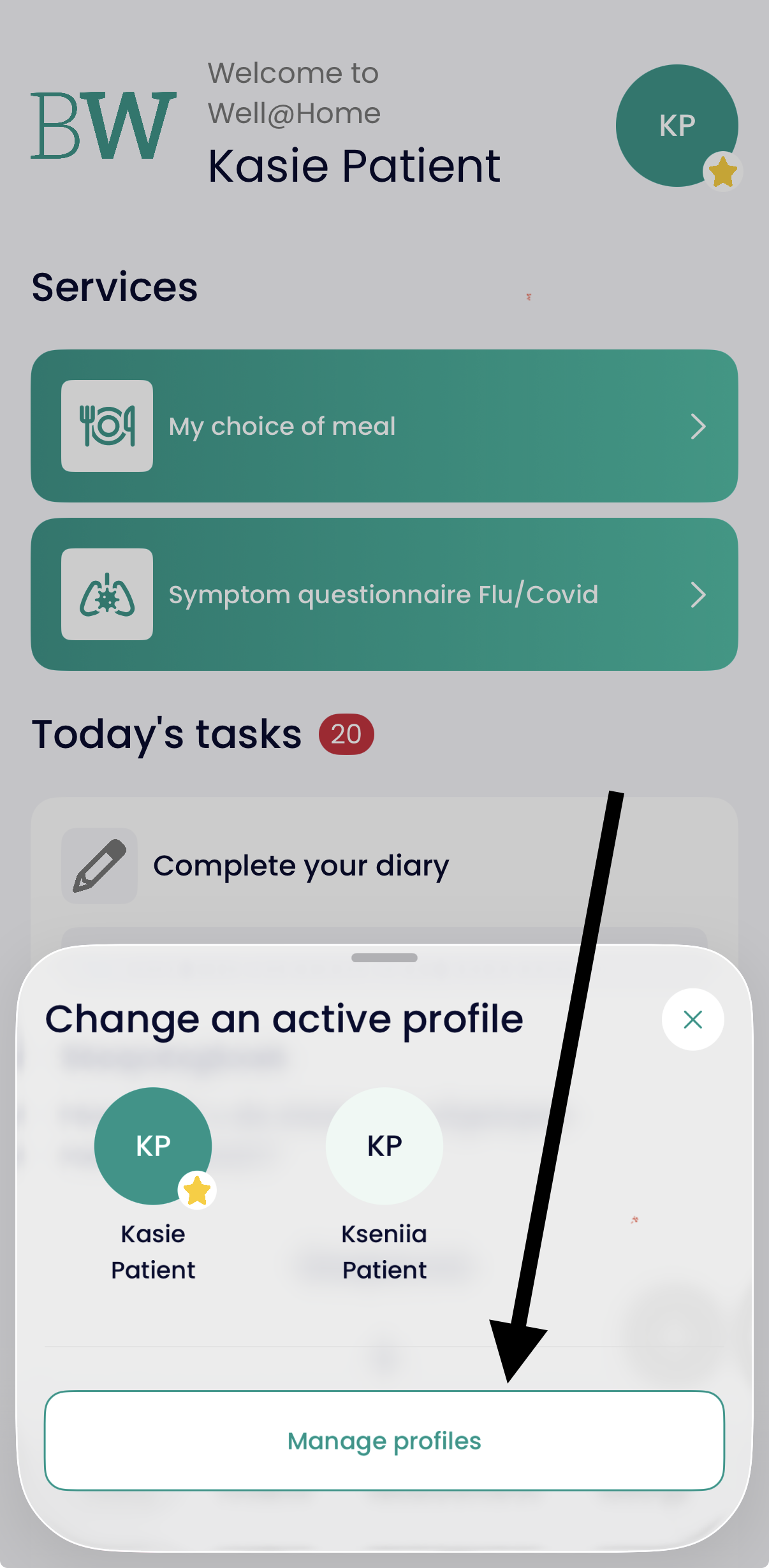
Tap Add profile.
Log in using one of the supported methods:
Box code login
eHealth login
Complete the login process.
After logging in, the new patient profile will automatically become active.
Option 2 — Via Settings
Open the mobile app.
Go to Settings.
Click on the Profiles tab.
Tap Add a profile.
Follow the login steps.
Switch Between Patient Accounts
Once multiple profiles are added:
Tap the profile switch icon on the Today screen.
Select the patient you want to open.
The app will immediately switch to that patient profile.
If app security (PIN code or biometrics) is enabled, you may first need to confirm your identity.
The currently active patient is always clearly displayed at the top of the Today screen.